Complete PDF to JPG Conversion Guide
Introduction
Sometimes you need a PDF page as a simple image, whether for a presentation, a social post, or quick sharing. A PDF to JPG Converter turns each page of your PDF into a standalone image file.
What is PDF to JPG Conversion?
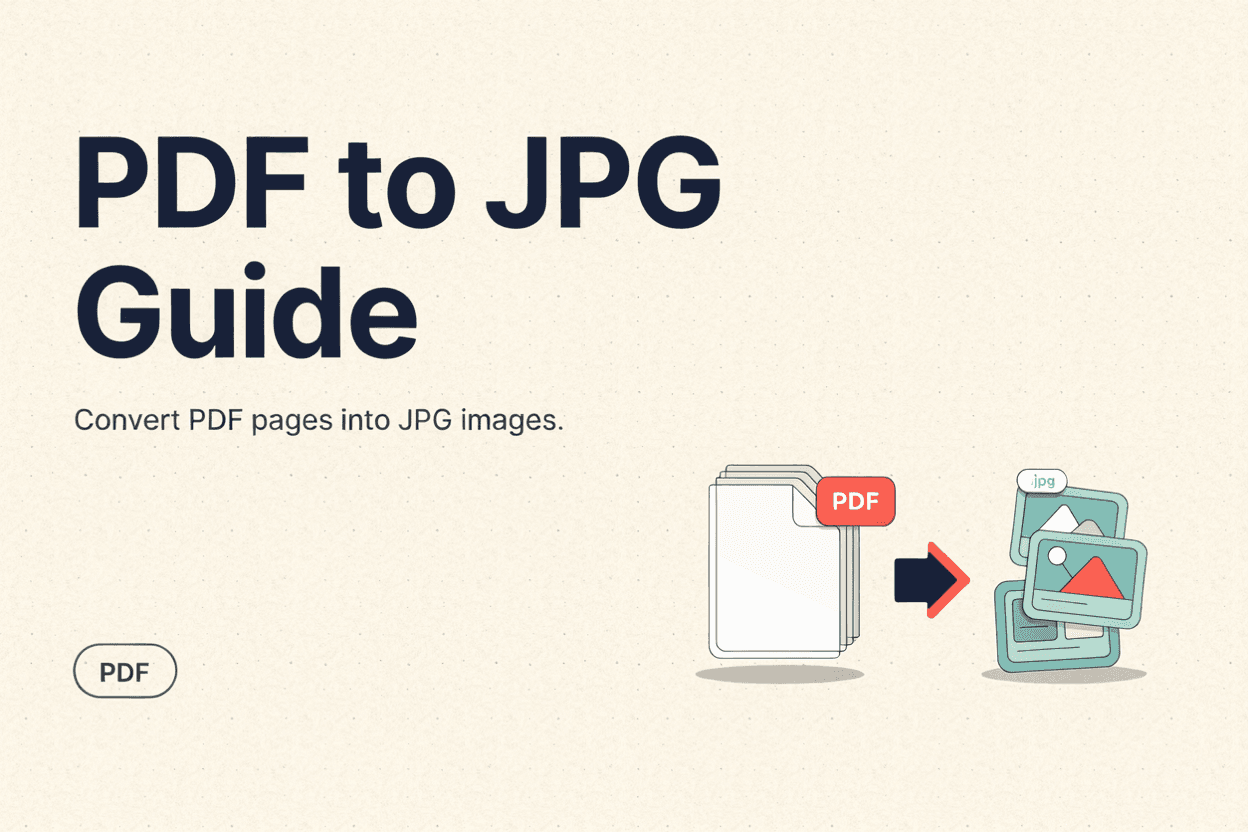
PDF to JPG conversion is the process of turning each page of a PDF document into a separate JPG image file, capturing the visual layout exactly as it appears.
Why is it Important?
Converting PDF pages to JPG makes it easier to share content on platforms that don't support PDFs, embed pages into presentations, or preview documents as quick visual thumbnails.
How Does it Work?
The tool renders each page of the PDF as a raster image at your chosen resolution, then saves each page as an individual JPG file using standard image compression.
Step-by-Step Guide
- Open the PDF to JPG Converter.
- Upload the PDF file you want to convert.
- Select which pages to convert (or all pages).
- Click the Convert button.
- Download your JPG images individually or as a batch.
Examples
Conversion Example
A 3-page PDF flyer converts into three separate JPG images, one per page, ready to be posted on social media or embedded in a website.
Benefits
- Turns PDF pages into easily shareable images.
- Useful for presentations, social media, and previews.
- No design software needed to extract page visuals.
- Supports converting single pages or entire documents.
- Free and accessible online.
Common Mistakes
- Converting at low resolution, resulting in blurry images.
- Expecting text in the JPG to remain editable or selectable.
- Not selecting the correct page range for multi-page PDFs.
- Using JPG output when transparency or sharp text needs PNG instead.
Frequently Asked Questions
Will the text in my PDF remain editable in the JPG?
No, converting to JPG turns each page into a flat image, so any text becomes part of the picture and is no longer editable or selectable.
Can I convert only specific pages instead of the whole PDF?
Yes, most converters let you select individual pages or a page range instead of converting the entire document.
What resolution should I use for the JPG output?
Higher resolution produces sharper images but larger file sizes; a moderate to high setting works well for most sharing and printing needs.
Can I convert a multi-page PDF into a single combined image?
Typically each page converts into its own separate JPG file, though some tools may offer options to combine pages differently.
Conclusion
A PDF to JPG Converter is a quick way to turn document pages into shareable images, perfect for presentations, previews, and social media use.
Convert PDF to JPG Now
Use our free PDF to JPG Converter to turn your PDF pages into images instantly.
Open PDF to JPG Converter